
If you already have access to your email but want to change the password, follow these steps:
the url netpoa.tz in the screenshots have been used as example do not use it. Use your domain as it shown in the examples below.
Step 1: Login to Webmail
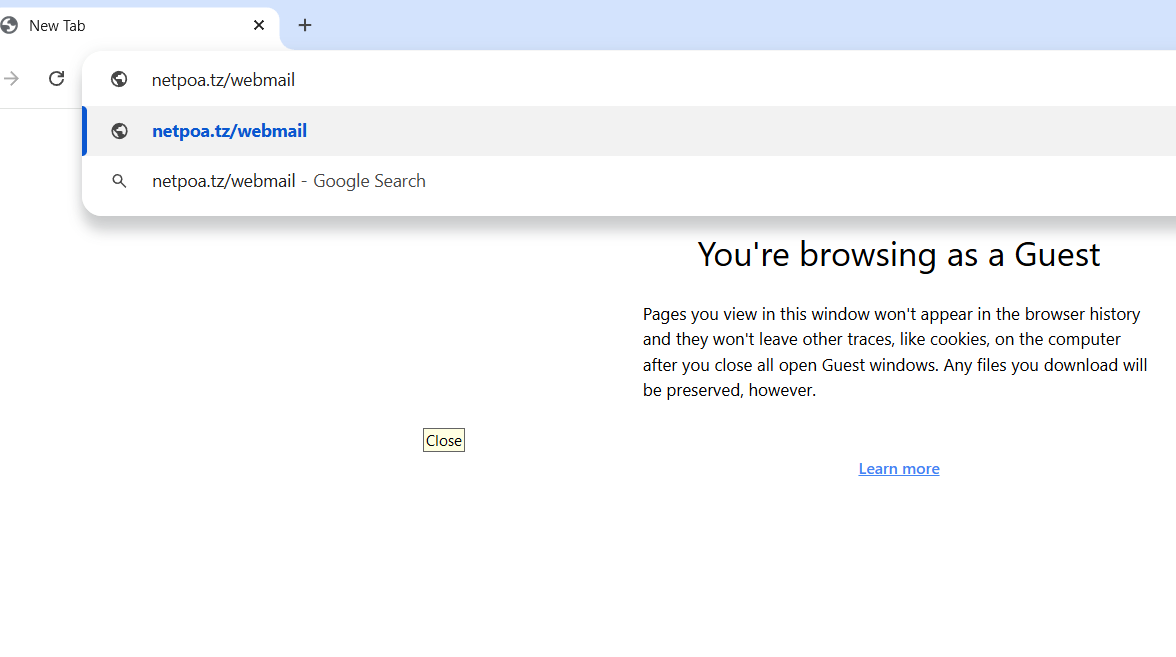
Open your browser and go to:
Or
Example:
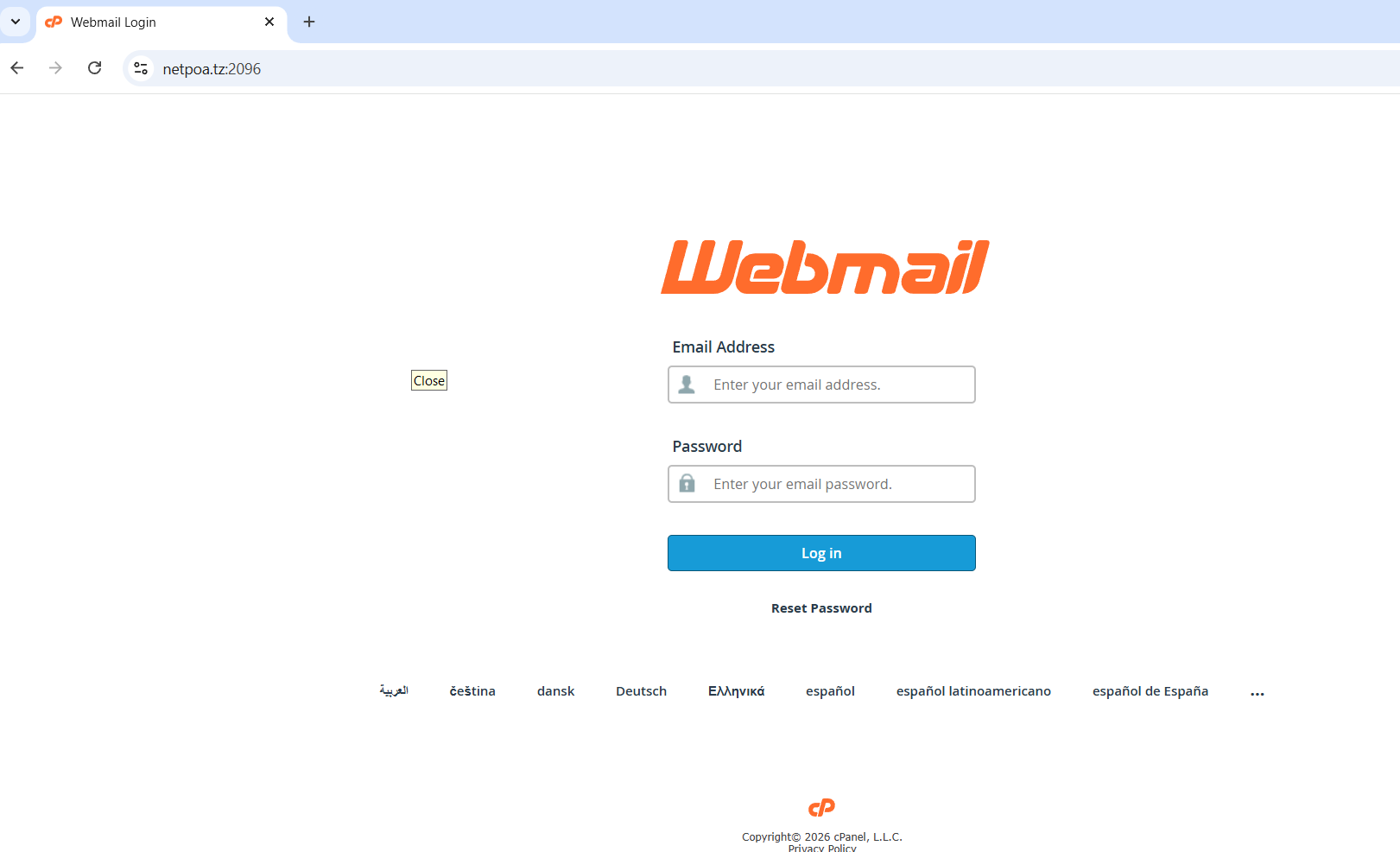
Enter:
-
Email Address (e.g. info@yourdomain.com)
-
Current Password
Click Log in.
Step 2: Open Password & Security Settings
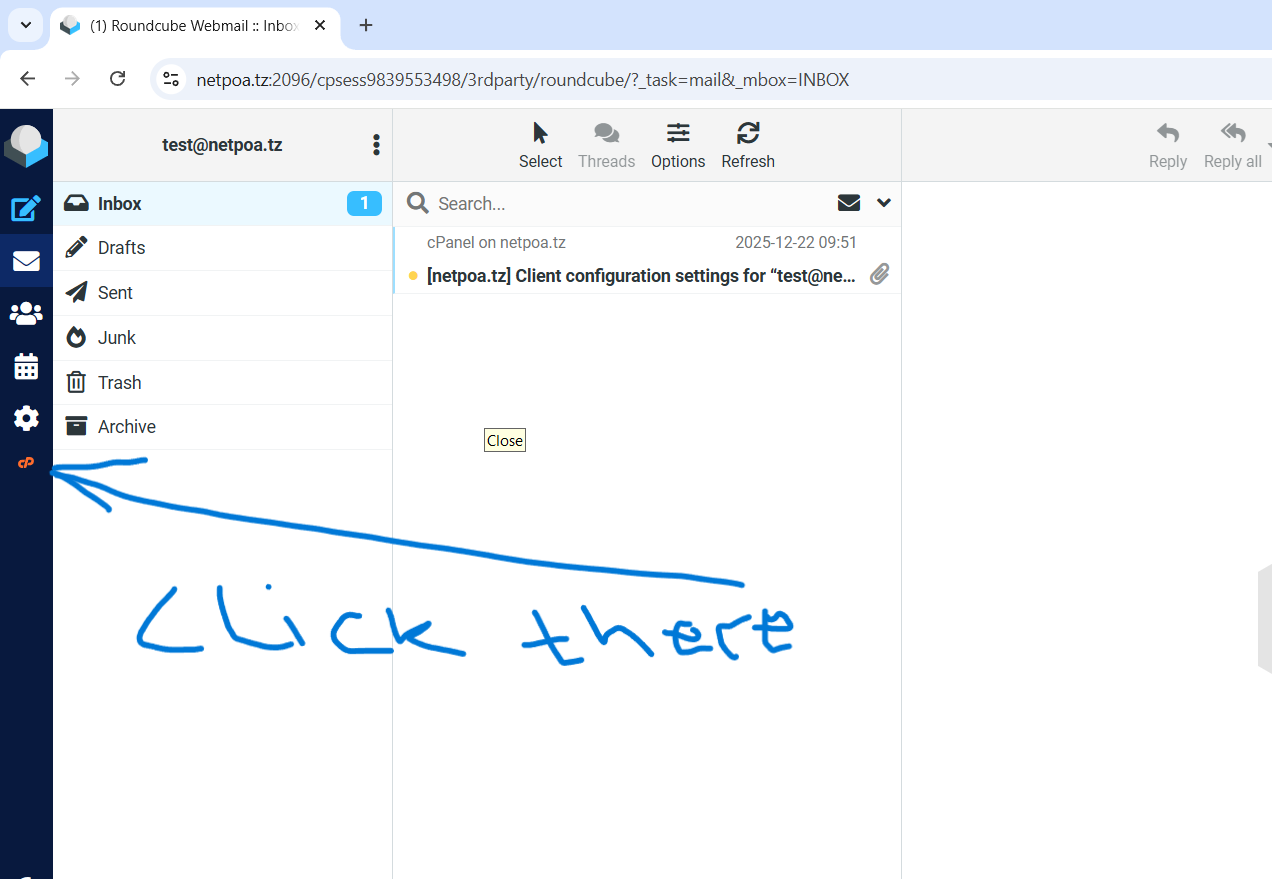
After logging in:
-
Click your email address at the top-right corner.
-
Select "Password & Security" from the dropdown menu.
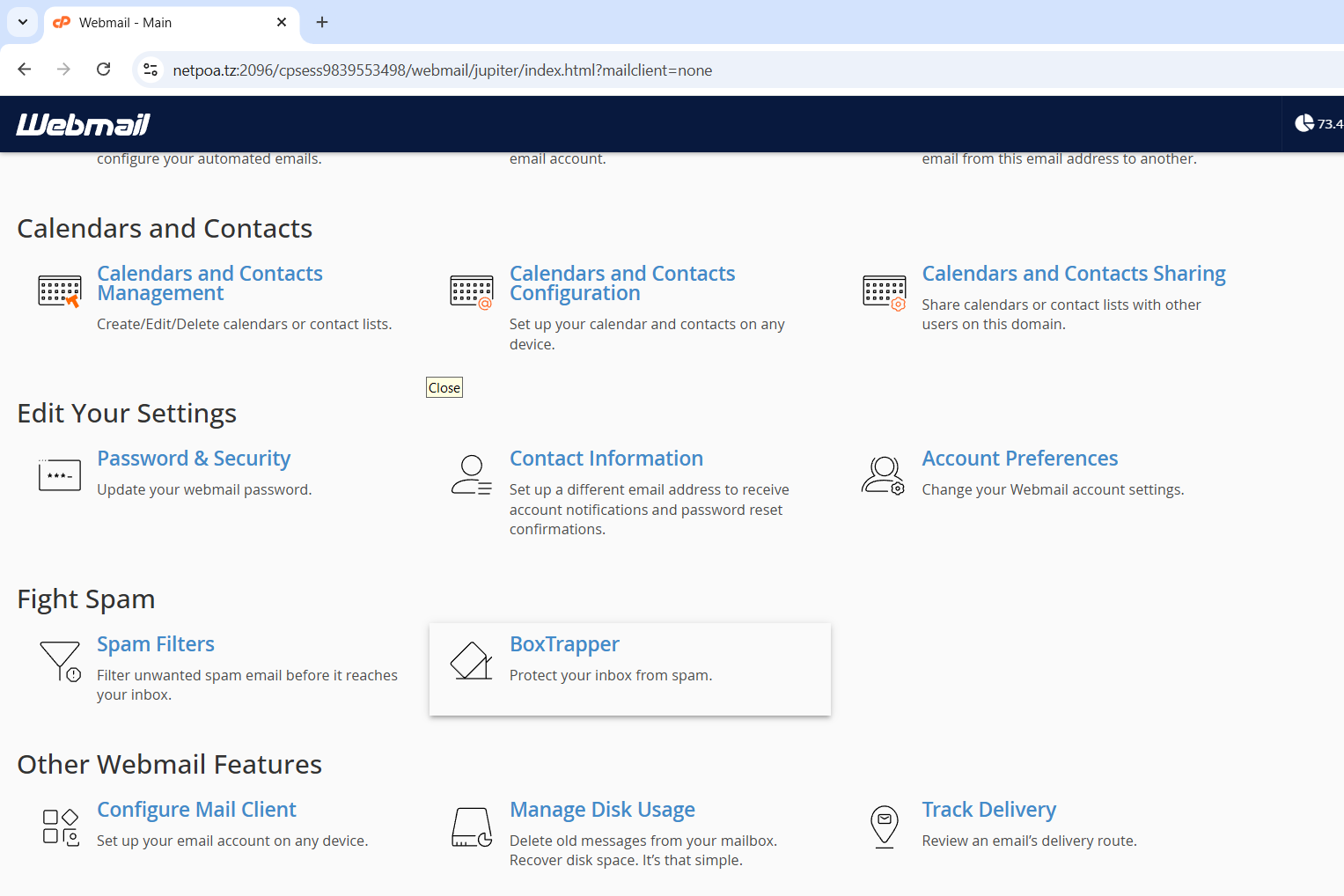
Step 3: Change Your Password
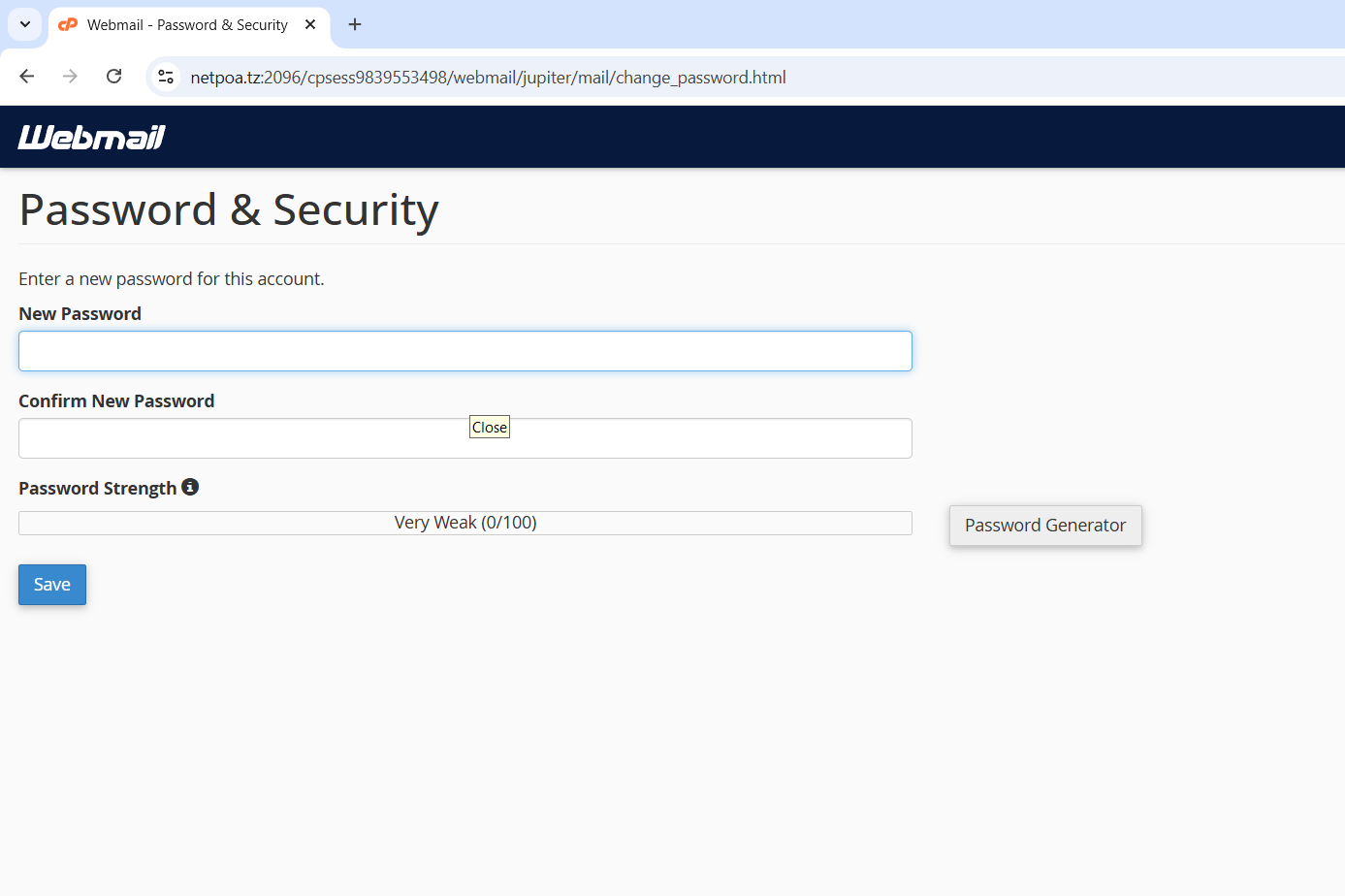
You will see the password change screen.
-
Enter your new password
-
Or click Generate to create a strong password
-
Confirm the password
Make sure the password strength bar is green (strong).
Click Save.
Step 4: Update Your Devices
If your email is connected to:
-
Outlook
-
Thunderbird
-
Android Mail
-
iPhone Mail
You must update the password there as well, otherwise email will stop working.
✅ Tips for a Strong Password
Use:
-
At least 8–12 characters
-
Uppercase & lowercase letters
-
Numbers
-
Special symbols (!@#$%)
Example:
If you forget your current password and cannot log in, contact your hosting provider (e.g., Netpoa Support) to reset it for you.